Sign in with your Jamf ID: no password required
Want to strengthen security and ease of use in a few simple steps? Read on to discover how to set up passkeys in Jamf.

Modern access authentication
Capabilities like blueprints, compliance benchmarks and AI Governance all require modern authentication to access.
There are two ways to get there.
First way: using an identity provider
Connecting your Jamf environment to your organization’s identity provider, such as Okta, Microsoft Entra or Google Workspace, lets your administrators sign in the same way they already do everywhere else: with the same MFA policies and session controls your organization already manages.
Second way: using a Jamf ID passkey
Signing in with Jamf ID instead works just as well; it’s the identity Jamf provides on its own, with no external provider required.
We’re continuing to improve what Jamf ID itself supports, and the latest addition is passkey support. Sign in with a passkey alone — no password needed — or add one as a stronger second factor alongside the password you already use.
The problem passkeys solve
A password is the same value every time, regardless of who enters it or where.
That’s what makes it risky. The moment it’s exposed anywhere, in a breach at an unrelated service, on a fake login page or in a file it never should have ended up in, that same value still works everywhere else it’s been used.
Attackers count on this, routinely testing stolen username and password pairs against other services to see where else they work: often automatically and at scale. Verizon’s 2025 Data Breach Investigations Report found that stolen credentials were the initial access vector in 22% of breaches. That figure climbs to 88% for breaches specifically targeting basic web applications.
Without a second factor enabled, a leaked password alone is often enough to get in.
A passkey closes that gap by removing the password from the equation entirely.
There’s nothing to leak and nothing to replay. If it’s copied from somewhere else, it simply won't work. That way, a breach at an unrelated service has nothing usable to hand an attacker.
A passkey also already satisfies multi-factor authentication on its own: combining something you have — your device — with something you are or that you know: a biometric or PIN — without requiring a separate authenticator app step.
Why this matters across the Jamf platform
If you sign in with Jamf ID, one passkey strengthens every product where that Jamf ID is accepted. Jamf Pro, Jamf Security Cloud, Jamf Protect and AI Governance all draw on the same credential, so the same security posture extends across whichever of those you use. Strengthen it once and that protection carries everywhere your Jamf ID does.
How passkey login works
Passkey login runs on WebAuthn: the standard built into modern browsers and operating systems. Register a passkey once tied to a device, a hardware security key or synced across devices through your platform’s credential manager.
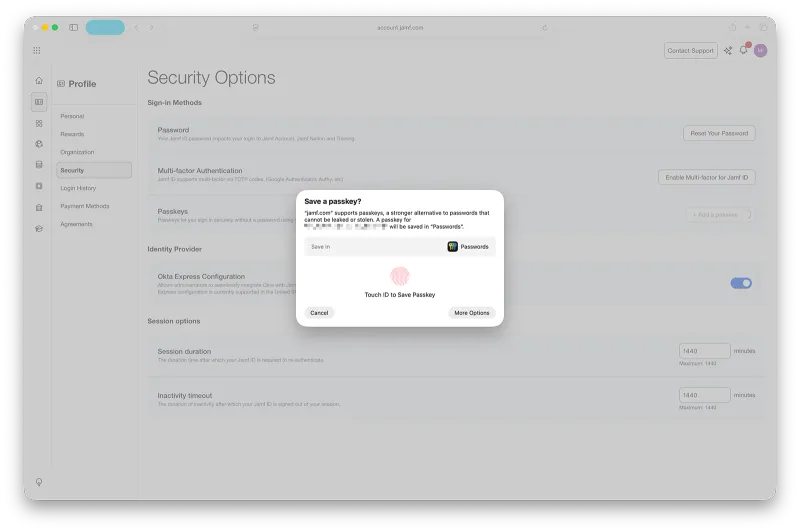
The next sign-in shows a “Continue with Jamf ID or passkey” option, and your device handles the rest. There’s no password to type, remember or reset.
How to create a passkey
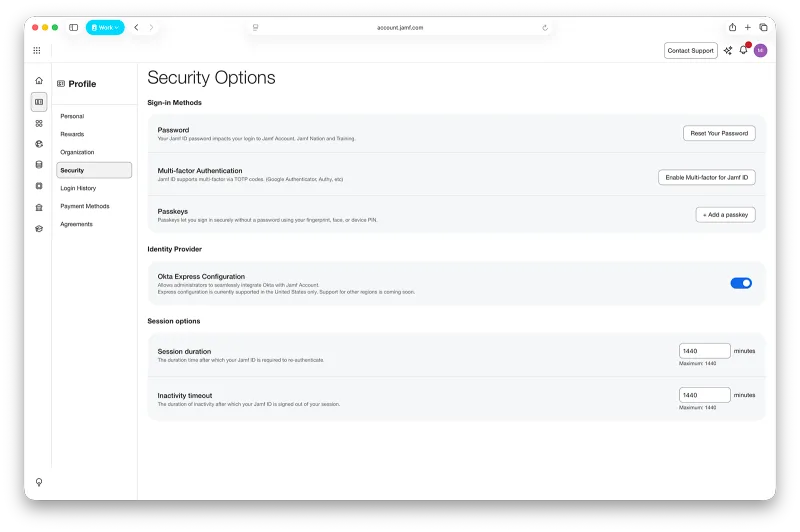
- Open Jamf Account profile settings.
- Go to Security and find Passkeys under Sign-in Methods.
- Select + Add a passkey and confirm with your device’s biometric, PIN or security key prompt.
Once added, the same passkey works on any sign-in screen that accepts your Jamf ID.
FAQs
Q: Does Jamf's passkey login cost extra?
A: No, passkey login is included with every Jamf ID.
Q: What happens to my email and password?
A: Nothing. Both remain valid; a passkey is an addition, not a replacement.
Q: Can I create a Jamf ID with just a passkey and no password at all?
A: Yes, it's possible to use a passkey to access Jamf without needing a password.
Q: Can I register more than one passkey?
A. Yes, you can register multiple passkeys per profile. Each is managed and removed independently from Security Options.
Q: Can my admin see or remove my passkey?
A: No. There’s no admin function for viewing or managing another user's passkeys. Passkey management is entirely self-created from your own Jamf Account profile.
Q: What if my organization uses Okta, Entra or another identity provider instead of Jamf ID?
A: If your organization uses an IdP like Okta or Entra, your passkey setup happens there instead of in Jamf. Check with your IT team to find out what’s supported.
Q: Do I still need a code from my authenticator app once I've set up passkey?
A: No. If you sign in to Jamf with a passkey alone, it already covers both factors. If you sign in with your password, use a passkey as the second factor instead of a time-based one-time passcode (TOTP).
Q: What if I lose my only passkey and never set a password?
A: Use "Forgot Your Password?" on the login screen. It works the same way whether you’re setting a password for the first time or resetting one, so this button gets you back into a passkey-only account just as well as it resets a forgotten password anywhere else.
Related reading
Subscribe to the Jamf Blog
Have market trends, Apple updates and Jamf news delivered directly to your inbox.
To learn more about how we collect, use, disclose, transfer, and store your information, please visit our Privacy Policy.