If Apple says your iPhone was targeted by mercenary spyware, treat it like an incident
Apple's Threat Notifications signal mercenary spyware targeting; learn verification steps, response actions, and layered mobile security defenses for high-risk users.
On August 13, 2026, Apple published updated guidance documenting how its Threat Notification program works. The same day, reports documented a fresh wave of alerts reaching users in 110 countries. Apple says its Threat Notification program has now reached users in more than 150 countries since 2021. The on-device message reads plainly: "Apple detected a mercenary spyware attack targeted at your iPhone. There are actions you can take now to help protect your data and device."
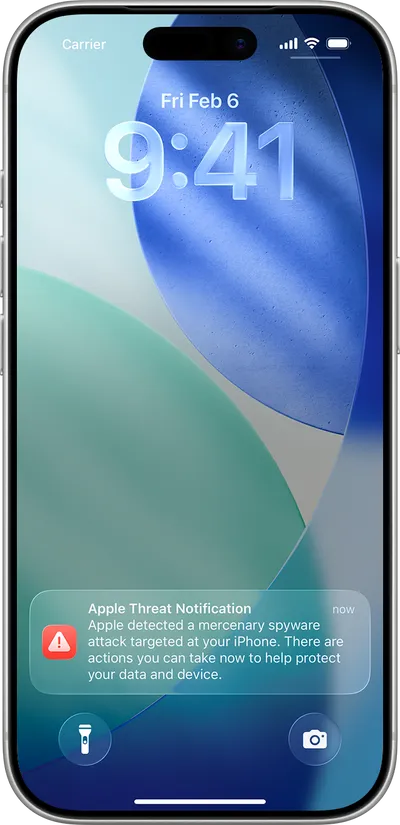
An Apple threat notification as it appears on the Lock Screen. Source: Apple Support.
These alerts appear on the Lock Screen and in Settings, arrive by email from threat-notifications@email.apple.com, and show as a banner at the top of account.apple.com after sign-in.
This blog will review Apple's threat notifications, what you should do if you receive one and how enterprises can layer defenses to better protect high-risk users and detect mercenary spyware.
What the notification means
According to Apple's own support documentation, these are high-confidence alerts that a specific person has been individually targeted by mercenary spyware. These attacks cost millions of dollars and target a very small number of individuals, often journalists, activists, politicians, and diplomats, likely because of who they are, what they do, or the information they are authorized to access. Public research has historically linked this class of tool to state actors and private vendors such as NSO Group's Pegasus.
Apple bases the alerts solely on its internal threat intelligence and investigations. While Apple notes that investigations can never achieve absolute certainty, it emphasizes that these notifications should be taken very seriously. Apple does not disclose what specifically caused it to issue a Threat Notification, explaining that such information could help spyware operators adapt their behavior and evade future detection.
Two principles are worth holding onto if you ever receive one:
- Targeted does not equal confirmed compromise: Apple is stating that a user was singled out for an attack. That doesn't establish that the exploit succeeded, achieved persistence or exfiltrated data.
- A phone that looks normal does not rule out compromise: Sophisticated spyware is designed to operate without obvious signs of infection.
This is a different kind of alert than a typical endpoint warning. Apple delivers a strategic signal ("this individual was targeted") while deliberately withholding detection details, since disclosing that logic could help attackers adapt and evade future detection.
How to verify the alert is real
A notification this serious is also an opportunity for phishing. A genuine Apple Threat Notification will never ask you, by email or phone, to click links, open files, install apps or profiles, or provide your Apple Account password or verification code. The reliable check is simple: sign in independently at account.apple.com. If Apple issued a real notification, a banner will be clearly visible at the top of the page.
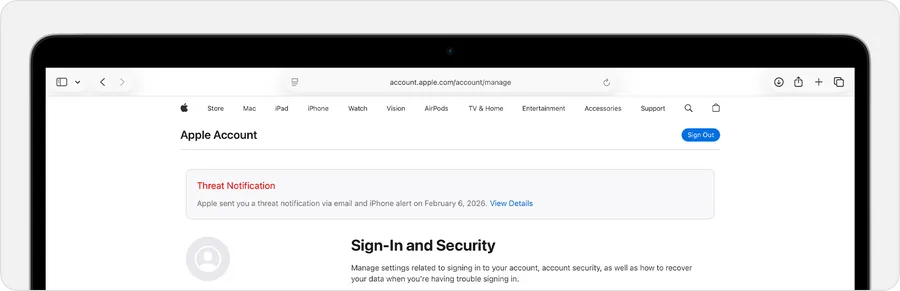
The threat notification banner shown after signing in at account.apple.com. Source: Apple Support.
What to do if you receive a threat notification
If you receive an Apple Threat Notification, act swiftly to protect your identity, accounts and device. Prioritize the following steps:
- Verify Authenticity Out-of-Band: Never click links, open files, install apps or profiles, or provide credentials in response to an unsolicited email or phone call claiming to be an Apple Threat Notification. Navigate independently to account.apple.com. If Apple issued a genuine Threat Notification, it will be clearly visible at the top of the page after you sign in.
- Seek rapid expert assistance: Because Apple does not disclose what specifically caused the notification, specialized mobile forensic analysis can help assess the device for indicators of compromise, anomalous execution, persistence, or evidence of payload execution. Apple strongly recommends seeking expert assistance. For organizations who want deeper investigation, mobile DFIR tools can collect and analyze system, kernel, crash, and diagnostic telemetry to identify targeted mobile threats.
- Preserve volatile evidence before modifying device state: Some mobile spyware components and post-exploitation artifacts can be highly ephemeral or memory-resident. While a reboot or software update may disrupt temporary malware, it can also destroy volatile evidence critical for a forensic investigation. If specialized mobile forensic support is available, responders should make an explicit containment-versus-preservation decision before triggering reboots, software updates, or other state-changing actions.
- Perform specialized forensic collection (and backup where appropriate): If deep investigation is planned, run a dedicated forensic acquisition before altering the system. If advised by the incident-response team, create a password-protected local encrypted backup to preserve user data and settings. However, a standard iOS backup is not a bit-for-bit forensic image or a substitute for specialized mobile DFIR collection.
- Enable Lockdown Mode as a preventive control: For those targeted individuals, Apple explicitly recommends enabling Lockdown Mode (Settings > Privacy & Security > Lockdown Mode) to drastically reduce the device’s attack surface across messaging, web browsing, wireless connectivity, and complex media. While activating Lockdown Mode requires selecting Turn On & Restart, it is a proactive hardening mechanism designed to block subsequent exploitation attempts-not a forensic tool or a guarantee that an active compromise has been removed.
- Update operating system software: After appropriate forensic collection is complete (or if forensic analysis is not feasible), update the device to the latest available iOS version. Apple recommends running current software to obtain the latest security patches. Updating closes known vulnerabilities, though receiving a Threat Notification does not reveal whether the specific exploit chain used against the target is already patched.
- Harden account & identity security: Confirm that the user's Apple Account is secured with a strong password and Two-Factor Authentication (2FA), as Apple recommends. Beyond the handset, the incident-response team should evaluate the broader identity footprint-reviewing trusted devices, active cloud sessions, corporate email, and privileged system access, rotating credentials or revoking sessions based on risk assessment.
Why Lockdown Mode matters for high-risk users
Apple introduced Lockdown Mode in 2022 as an opt-in feature that shrinks the attack surface mercenary spyware relies on, disabling the message attachment types, link previews, and other functionality that zero-click exploits typically abuse. In March 2026, Apple stated it is "not aware of any successful mercenary spyware attacks against a Lockdown Mode-enabled Apple device." That's a track record that's held up for four years against some of the most sophisticated attackers in the world.
Adam Boynton, Senior Enterprise Strategy Manager, Jamf, made a related point in comments to Forbes following the August notifications: "Mercenary spyware is precision tooling, meaning that people are targeted because of who they are, what they know, and who they talk to. These tools rely on zero-day exploits precisely because the iPhone's defenses leave attackers no cheaper way in." He added that "Apple's own data shows no known compromise of a device running Lockdown Mode, which shows Apple's notification and the response are working."
Apple's track record is not a coincidence. Lockdown Mode is an important, proactive defense for people who believe they may be at elevated risk. If a Threat Notification has already arrived and specialized forensic support is immediately available, responders should first consider evidence preservation before restarting the device to enable it.
Lockdown Mode also works best on top of ordinary device hygiene: enforced passcodes, current iOS versions, and basic threat prevention, applied to every managed iPhone and iPad with the same rigor organizations already expect of a managed laptop.
Jamf for Mobile covers that baseline.
It's the floor everything else in this post sits on, not the main event.
Prevention and detection, working together
On top of that baseline, Lockdown Mode is a proactive hardening mechanism designed to block subsequent exploitation attempts. It isn't built as a forensic tool and turning it on isn't a guarantee that an active compromise has already been removed. Continuous device monitoring is the complementary piece: a detective control designed to add visibility into what's happening on a device over time. Highly targeted individuals benefit most when both are in place, simply because more layers mean more chances to catch something and more context if a security team ever needs to investigate.
This is exactly the spirit of what Boynton described when he talked about who's actually on the target list now: "The economics of mercenary spyware mean the target list increasingly includes executives, negotiators, and anyone holding privileged access. If one of these notifications’ lands on a work device, it should be treated as a security incident from the first minute. Action needs to be taken to preserve the device rather than wiping it, enable Lockdown Mode, and bring in expert help."
Going deeper: Forensic investigation with Jamf Mobile Forensics
Apple's own guidance points people toward Lockdown Mode and, for civilians without enterprise support, emergency helplines like Access Now's Digital Security Helpline. Enterprise defenders typically need one more thing: visibility into system-level telemetry, processes and threads, crash artifacts, kernel logs, configuration state, and other forensic evidence. That's the gap Jamf Mobile Forensics is built to close.
Jamf Mobile Forensics lets security, and DFIR teams remotely analyze iOS endpoints for zero-click exploits, advanced persistent threats, and commercial mercenary spyware, without jailbreaking the device or exposing personal content. In practice, that means:
- Deep system and kernel log inspection: Collecting and inspecting low-level iOS telemetry, diagnostic logs, process anomalies, and crash reports to identify zero-day exploitation chains and anomalous execution paths.
- Automated threat intelligence and behavioral rules: Where Jamf Threat Labs correlates extracted device artifacts against known indicators of compromise and behavioral signatures associated with Pegasus, Predator, and other mercenary tooling.
- Non-destructive remote collection: Allowing security teams to capture diagnostic state and triage quickly, without prematurely wiping a device and erasing volatile forensic evidence.
An Apple Threat Notification is intelligence about a person, not a detection on a device. Jamf Mobile Forensics is designed to help responders move from that signal to an answer: what happened on the endpoint, what needs containing and what evidence needs preserving.
A layered approach for highly targeted individuals
For your highest-risk and traveling individuals, Jamf Mobile Forensics is the layer built specifically for them, working on top of Apple's own protections rather than around them:
- Jamf Mobile Forensics for your highest-risk and traveling individuals: Continuous monitoring that adds visibility while someone is on the road or in a high-risk region and gives responders forensic detail to act on quickly if anything unusual ever surfaces.
- Lockdown Mode for anyone at elevated risk: A further narrowing of the attack surface for executives, board members, negotiators, journalists, or anyone else whose role makes them a plausible target.
- Baseline hardening for the whole fleet: Passcode enforcement, OS updates, and fundamental threat prevention through Jamf for Mobile, applied to every managed iPhone and iPad, no exceptions.
For devices already covered by the first layer, there's a configuration detail worth knowing about: Developer Mode.
Jamf Threat Labs' reverse engineering of Predator spyware found that the implant checks whether Developer Mode is enabled and aborts immediately if it is, treating the setting as a sign the device belongs to a security researcher rather than a real target. Enabling Developer Mode on a device that Jamf Mobile Forensics is actively monitoring turns that evasion habit into a deterrent and gives Jamf Mobile Forensics deeper diagnostic access besides. This is a conditional recommendation, not a blanket one, and it's a different lever than Lockdown Mode rather than a substitute for it. Developer Mode should remain off on any device that isn't running active monitoring, since on its own it widens the attack surface rather than narrowing it.
Most highly targeted individuals will never see a Lock Screen alert at all. That's not because Apple's system is falling short. Apple's own guidance is candid that these attacks cost millions of dollars, have a short shelf life, and are built to be hard to detect and prevent, and that most users will never be targeted in the first place. That's exactly why continuous monitoring matters for the small number of people who are: it doesn't wait for a rare, high-confidence alert to arrive before giving security teams something to act on.
What to do right now
As a reminder, if you or someone in your organization receives an Apple Threat Notification, or you manage devices for people who plausibly could, there are concrete steps to take today:
- Verify an alert independently: Sign in at account.apple.com. Never act on a link, file, app, or password request from the notification itself.
- Bring in expert help before doing anything else: Preserve the device rather than wiping or restarting it and start a Jamf Mobile Forensics scan to capture volatile evidence before it's lost.
- Enable Lockdown Mode: Settings > Privacy & Security > Lockdown Mode, as a forward-looking hardening step immediately after initial forensic triage is captured, rather than before.
- Update iOS: Once forensic collection is complete, or immediately if specialized collection isn't available.
- Harden the identity layer: Confirm strong two-factor authentication on the Apple Account, and review trusted devices, active cloud sessions, corporate email access, and privileged system access.
Want to know if Jamf Mobile Forensics is right for your highest-risk users?